
Importing Data
Bring customer, document, requested-item, task, contact, platform, and tracked-party records into Sidecar without losing the spreadsheet details that do not map cleanly.
Spreadsheet import is meant to shorten setup, not turn an old workbook into an unquestioned source of truth.
If you are still deciding how the imported records should be organized, review Common Setup Patterns before changing the workbook. The patterns show how smaller expiration, package-checklist, request, and tracked-party workflows fit the same Sidecar model.
Sidecar analyzes the file first, shows what it believes each column and row means, preserves populated information it cannot use natively, and waits for approval before writing records to the workspace. The useful part is not merely moving rows. It is giving you a chance to see how those rows will become customer work before they are added.
This guide covers the normal additive import used in a signed-in workspace. The separate Replace workspace data tool is deliberately destructive and is not part of the ordinary import process.
If your spreadsheet only tracks your own organization’s licenses, certifications, policies, permits, training records, or similar expiration dates, read Simple Document Expiration Tracking first. The simplest pattern is to use one consistent customer name for your organization so imported documents share the same internal operational container.
On this page:
- Before you import
- Spreadsheet formats and workbook shapes
- Start the analysis
- Review what Sidecar found
- Understand mappings and confidence
- Review preserved and normalized values
- Review contacts and tracked parties
- Approve the import
- Verify the result
- Re-import an updated spreadsheet
- Common problems
Before you import
You do not need to redesign a working spreadsheet merely to make it look like Sidecar. Clear headings and consistent customer names help, but the importer is built to interpret ordinary contractor-admin trackers rather than one mandatory template.
A quick cleanup is still worthwhile. Before uploading, look for:
- customer names that refer to the same customer in slightly different ways
- columns whose heading no longer describes the values below it
- blank title or name cells on rows that should create a record
- dates stored as comments or free-form notes when a real date column is available
- several meanings packed into one cell when they could be separated without much effort
- old worksheets that contain instructions, abandoned drafts, or stale copies of the same tracker
Do not remove useful columns merely because Sidecar may not have a matching field. Populated values that do not map to a native field can be preserved with their worksheet, row, column, and original value.
It is also fine to import in stages. A first import might bring in stable customers, documents, requested items, and contacts. Your team can then correct workflow details directly in Sidecar instead of polishing a historical spreadsheet until it becomes a second software project.
Spreadsheet formats and workbook shapes
Sidecar accepts XLSX, XLS, and CSV files. The upload page shows the current file-size limit for the workspace.
A workbook can use separate worksheets for different records. A common structure might include Customers, Documents, Requested Items, Tasks, Contacts, Platforms, or Tracked Parties. Sidecar analyzes each worksheet in its own context, so a Status column on Documents can mean something different from a Status column on Tasks.
A single flat worksheet or CSV can also contain several record types. A column such as Record Type, Row Type, Item Type, or another consistently used discriminator can tell Sidecar whether a row describes a document, task, requested item, customer, platform, or tracked party. Generic columns such as Name, Title, Status, or Notes are then interpreted according to that row type.
Sidecar also recognizes several common variations:
- A document sheet with both
Document NameandDocument Typecan use the name as the record title and the type as its category. - A simpler sheet with only
Document Typecan still use that column as the document identity when the values clearly contain document names. - Contacts can appear beside customer rows, on repeated rows for the same customer, in numbered groups such as
Contact 1 NameandContact 2 Email, or on a dedicated Contacts worksheet. - Role-based contact columns such as broker name, broker email, or broker phone can be interpreted as contact information when the customer relationship is clear.
- Tracked parties can appear on their own worksheet or as the subject or owner of a document or requested item.
- Task worksheets can include due date, owner, priority, platform, requester, notes, and related-document context without creating a second document merely because one is mentioned in the task row.
Instruction, README, guide, and help worksheets are generally ignored when they contain no tracking fields. That lets a real workbook retain its human notes without importing the table of contents as a customer named “Start Here.”
Start the analysis
Open More > Import, then select Import spreadsheet.
Choose the workbook and select Analyze spreadsheet.
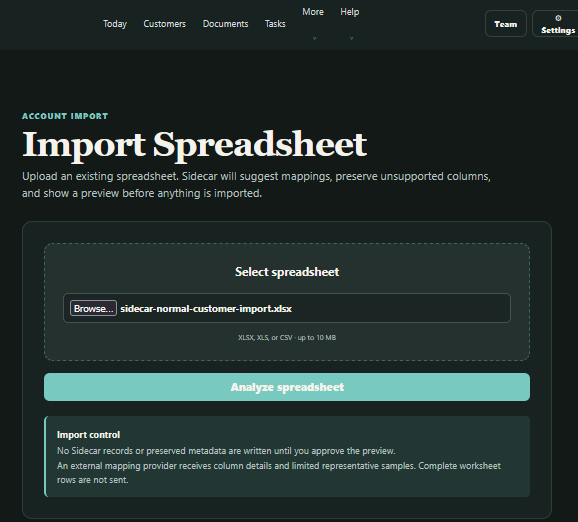 Selecting Analyze spreadsheet prepares a review of the workbook. It does not import records immediately.
Analysis does not immediately add customers, documents, tasks, or other records. Sidecar parses the workbook and prepares a review page first.
The upload screen also explains how mapping will be handled in the current environment. Regardless of the configured mapping method, approval remains a user decision.
If you choose the wrong file, use Choose another spreadsheet from the review page. Leaving a pending review discards that analysis rather than quietly importing it in the background.
Review what Sidecar found
The top of the review page gives you the fastest sanity check. It shows the source filename, worksheet count, row count, and the number of records Sidecar expects to create or connect.
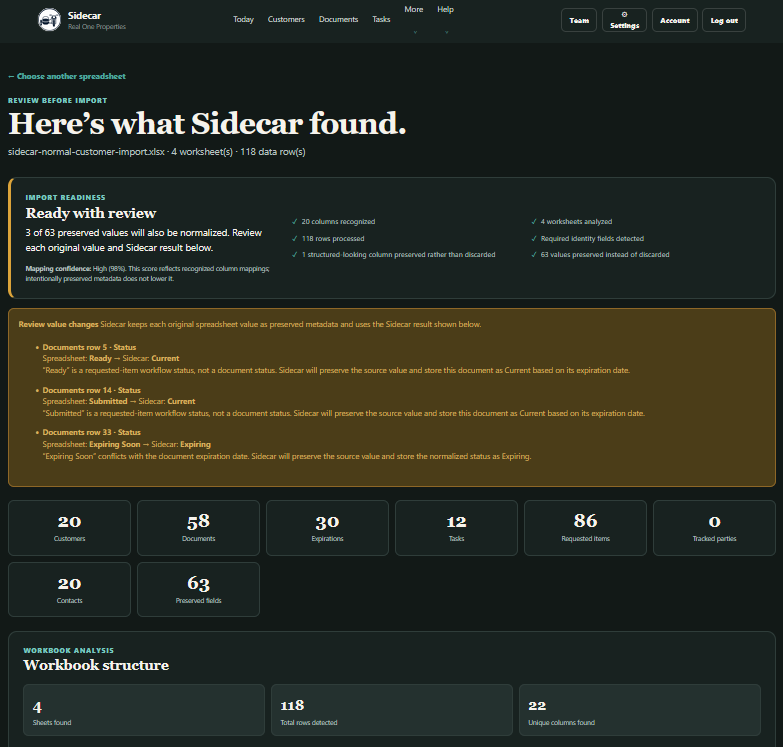 Start with the record totals, normalization warnings, and workbook structure before reviewing individual mappings.
Review the totals for:
- customers
- documents and expirations
- tasks
- requested items
- tracked parties
- contacts
- preserved fields
The counts do not all have to match the number of spreadsheet rows. One customer row may contain both customer and contact information. A document row may also describe a requested item. A mixed worksheet can produce different record types from different rows.
Next, review Workbook structure. The sheet summary confirms which worksheets were analyzed, and the unique-column list helps catch obvious surprises. If a sheet you expected is missing, or a worksheet full of instructions appears to be treated as business data, stop and inspect the workbook before approving anything.
Normalization warnings
Some values can be understood but cannot safely be applied exactly as written. Sidecar lists those near the top of the review.
For example, Submitted is meaningful for a requested item, but it is not a native document status. A document with that source value can be stored using the safer status indicated by its expiration date while the original Submitted value is preserved for reference.
A document status may also conflict with its date. A row marked Current with an expiration date in the past needs review. Sidecar shows the conflict and the normalized result rather than silently choosing whichever cell happened to look more confident.
Rows that block approval
If Sidecar identifies a row as a particular record type but cannot find the required name or title, approval is blocked. The review shows the worksheet and row that need correction.
That is intentional. A preview should not promise that a row will become a task, document, requested item, or tracked party if the apply step would have no safe identity for it.
Understand mappings and confidence
The Column understanding panel shows how Sidecar interpreted each source column.
A mapping may point to a native field such as:
customer.namedocument.namedocument.categorydocument.expiration_daterequirement.titletask.titlecontact.email
A common heading can vary by worksheet. Status, Notes, or Waiting On may map differently on Documents, Requested Items, and Tasks. Use View sheet-specific mappings when the summary says a column varies by sheet or row type.
Mapping confidence is not import readiness
Near the top of the review page, Sidecar shows both Import readiness and Mapping confidence. They answer different questions.
Mapping confidence describes how strongly Sidecar recognized the workbook’s columns. Import readiness describes whether the proposed import can be approved safely after considering mappings, preserved metadata, normalized values, and required relationships.
Farther down the review page, Column understanding shows how each spreadsheet column was interpreted. Beside it, Preserved Metadata Summary shows fields and values Sidecar will retain even when they do not map to a native Sidecar field.
A deliberately preserved column may have a lower mapping percentage without making the import unsafe.
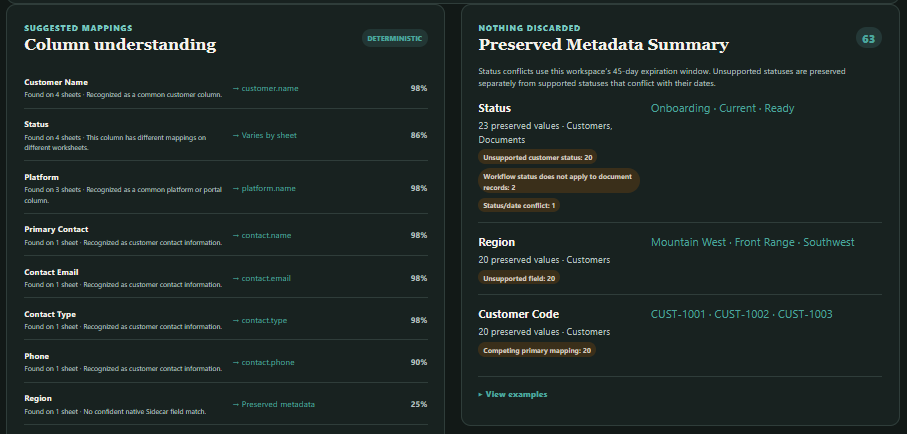
The detailed panels show how individual columns were interpreted and which unsupported fields will be preserved rather than discarded.
Do not treat every percentage below 100 as a defect. Read the mapping target and explanation. Region going to preserved metadata is different from Expiration Date being mistaken for a task title.
Review preserved and normalized values
Sidecar follows a simple import promise:
We import what we understand and preserve everything else.
The Preserved Metadata Summary groups populated values that do not have a safe native destination. It shows the source column, example values, affected worksheets, and the reason for preservation.
Typical reasons include:
- the workspace does not currently have a native field for that information
- another column is the stronger primary mapping
- a status belongs to a different record type
- a status conflicts with a document date
- a value looks structured but does not have enough context for a safe workflow mapping
Preserved metadata is informational. It does not create a custom database field, change workflow status, calculate a score, or affect Today merely because it was present in the spreadsheet.
Use View examples when the summary needs closer inspection. The worksheet and source-row references make it possible to return to the original workbook and understand why the value was preserved.
The source preview at the bottom of the review page shows representative rows from the workbook. It is not intended to reproduce every row of a large file. Use it to confirm that headings, values, and worksheet context still look like the file you meant to import.
Review contacts and tracked parties
Contacts and tracked parties serve different jobs, so the review shows them separately.
Customer contacts
Contacts are people Sidecar may use during request and follow-up workflows. A contact needs a customer relationship and a valid email address before it can be created as a request recipient.
The preview distinguishes contacts that will create from contacts that matched existing. Existing contacts are matched within the customer by normalized email address, and repeated spreadsheet rows do not create duplicate contacts.
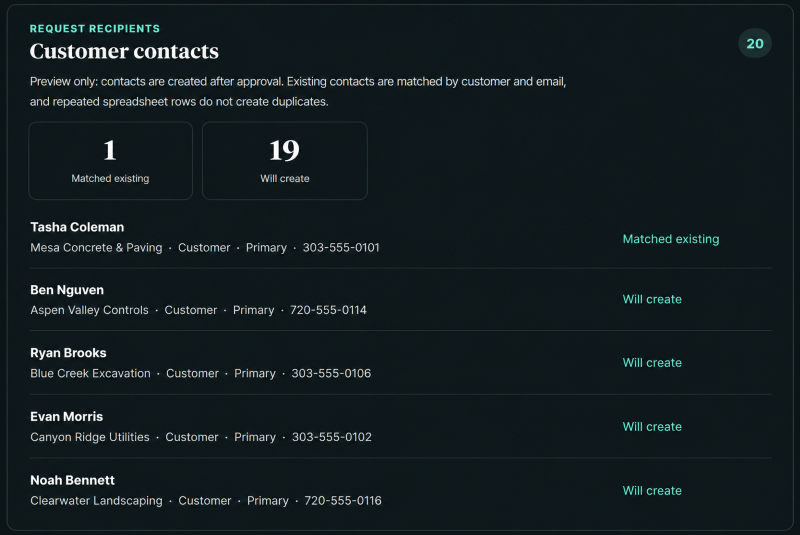 Contacts are previewed before approval. Existing contacts are matched within the customer by email, while new contacts are identified separately.
When an existing contact is matched, the import can safely fill missing information such as name, phone, or notes. It does not silently replace nonblank contact information that someone has already maintained in Sidecar.
Check that:
- the contact is attached to the correct customer
- the contact type makes sense for future requests
- a primary contact is marked appropriately when the source data provides that context
- one person has not been split into duplicates because of inconsistent email addresses
Tracked parties
A tracked party identifies whose document or requested item is being managed. It may be a subcontractor, employee, company, crew, or another subject that is distinct from the customer receiving the package.
The preview shows tracked parties that match existing tenant records and those that will be created after approval. Matching is tenant-local and name-based. Blank subject information continues to mean that the document or requested item belongs to the workspace or primary company.
A contact can also be a tracked party in real life, but the two records still answer different questions: who should receive the message, and whose record is being tracked.
Approve the import
Once the counts, mappings, normalized values, contacts, tracked parties, and source samples look reasonable, select Approve import.
Only then does Sidecar write the approved records and preserved metadata to the workspace. If the review contains a blocking validation issue, approval remains unavailable until the source row is corrected and analyzed again.
After approval, the import appears in Spreadsheet Imports history. Its detail page retains the source filename, mapping decisions, confidence values, preservation reasons, and the expiration attention window used during that import.
Sidecar also records concise import activity for affected customers. The history summarizes what changed without creating one noisy activity event for every spreadsheet row.
Verify the result
Do not treat the success page as the end of the review. Spend a few minutes checking the imported workspace while the spreadsheet is still familiar.
A practical verification pass is:
- Open Today and confirm that the highest-priority customers make sense.
- Open one healthy customer and one customer with missing or waiting work.
- Confirm that requested items, linked documents, tasks, contacts, platforms, and tracked parties appear in the expected customer context.
- Open Documents and check a few categories, statuses, and expiration dates.
- Open Tasks and confirm due dates, owners, and priorities.
- Return to the approved import in Spreadsheet Imports when you need to trace a mapping decision or preserved value.
Pay particular attention to values that affect current workflow: status, expiration date, waiting party, follow-up date, required flag, task owner, and customer relationship. A field can be preserved perfectly and still require a native correction if you want it to drive Sidecar behavior.
The original spreadsheet remains useful as a comparison during this pass. After that, update the current source records in Sidecar as work changes rather than repeatedly consulting an older tracker for the current answer.
Re-import an updated spreadsheet
A later import is treated as a proposed update, not permission for the spreadsheet to overwrite the workspace.
For imported documents, Sidecar uses prior import provenance and conservative matching to classify the proposed changes as:
- New records
- Safe updates
- Conflicts
- Unchanged
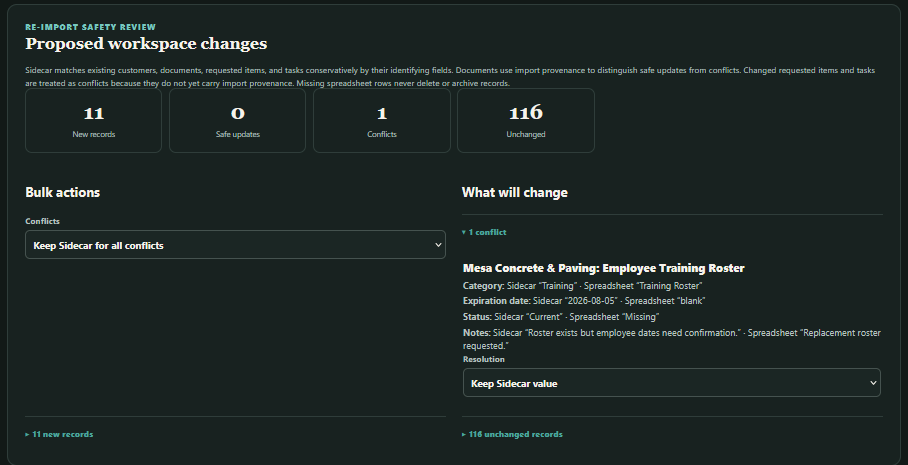 Re-import compares proposed document changes with the existing workspace. Review safe updates and resolve conflicts before approval.
Safe updates and conflicts show the fields that differ. You can accept or reject safe updates and choose whether a conflict should keep the Sidecar value or use the spreadsheet value. Keeping Sidecar is the safer choice when someone has deliberately updated the record after the earlier import.
Rows missing from the updated spreadsheet do not delete or archive Sidecar records. Absence is not treated as proof that the record should disappear.
Sidecar also matches existing customers, requested items, and tasks conservatively by their identifying fields. Identical matches are shown as unchanged. Changed requested items and tasks are treated as conflicts because they do not yet carry the same import provenance used to distinguish safe document updates. Contacts continue to use customer-and-email matching, and tracked parties use tenant-local name matching.
Review every count before approval. Conservative matching prevents obvious duplicates without guessing that two merely similar records are the same. Re-import is designed to protect the workspace, not perform fuzzy reconciliation with unwarranted confidence.
Common problems
Sidecar says no tabular data was found
Confirm that the workbook contains populated rows with a recognizable header row. A sheet made entirely of formatting, merged headings, images, or instructions may not contain tabular data for Sidecar to analyze.
A row is listed as needing attention
Open the source worksheet and find the row shown in the warning. A typed record usually needs a usable identity such as customer name, document name, task title, requested-item title, platform name, or tracked-party name.
Two customers look like duplicates
The preview may warn about similar customer names without merging them. Correct the workbook when names such as Mesa Concrete, Mesa Concrete & Paving, and Mesa Concrete and Paving refer to the same account. Leave them separate when they are genuinely different customers.
A field was preserved instead of imported natively
Read the preservation reason first. Sidecar may lack a native field, another column may have won a mapping collision, or the value may not apply to that record type. Preservation prevents data loss, but it does not make the value operational.
A contact was not created
Contacts need a customer relationship and a valid email address. Check that the customer name is present and consistent, and that the email is stored in a contact-related column rather than a note that happens to contain an address.
A document status changed during analysis
Look for a normalization warning. The source status may belong to requested-item workflow, may not be supported for documents, or may conflict with the expiration date. Sidecar preserves the original value and shows the safer document status it plans to use.
The review shows more requested items than expected
A requested item can come from a dedicated Requested Items row or from a document row that also names the customer requirement the document supports. Review the source preview and worksheet-specific mappings to confirm whether both sources are intentional.
The updated workbook shows tasks or requested items as new
The document re-import matcher has stronger provenance-aware conflict review than every other record type. Treat non-document counts conservatively and check for possible duplicates before approving repeated imports.
Keep the import reviewable
Import works best when it gets the team out of retyping without pretending the spreadsheet is perfect.
Use the preview. Correct obvious naming problems. Preserve useful information that does not fit yet. Approve only when the proposed records tell a believable customer story. Then keep the current work current inside Sidecar.