
Choose a starting point
Decide whether to import a spreadsheet, start manually, or combine both approaches.
Choose how to start
There are two reasonable ways to begin.
Start with a spreadsheet import
Import is usually the fastest path when you already have a customer or document tracker. Click on More > Import to pull up the spreadsheet import tool.
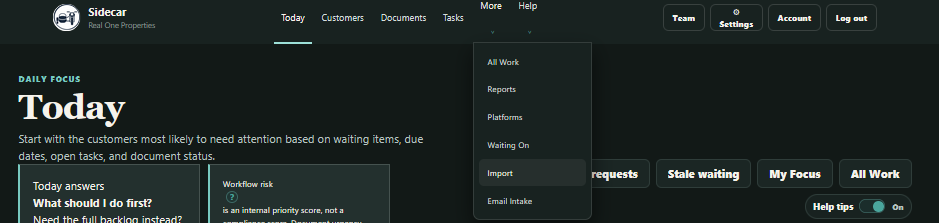 Open More > Import to reach the spreadsheet import area.
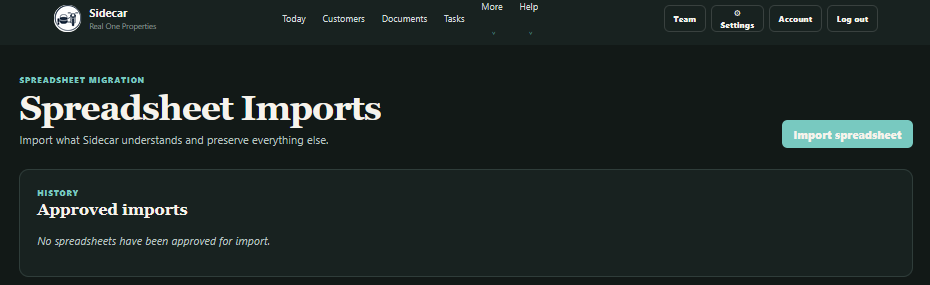 Select Import spreadsheet to choose a workbook and begin the review process.
Sidecar analyzes the workbook, identifies the information it understands, and shows a preview before anything is approved. Fields that do not map to a native Sidecar field can be preserved as imported metadata instead of being thrown away.
Import is especially useful when your spreadsheet already contains customer names, document titles, categories, statuses, expiration dates, tasks, or follow-up notes.
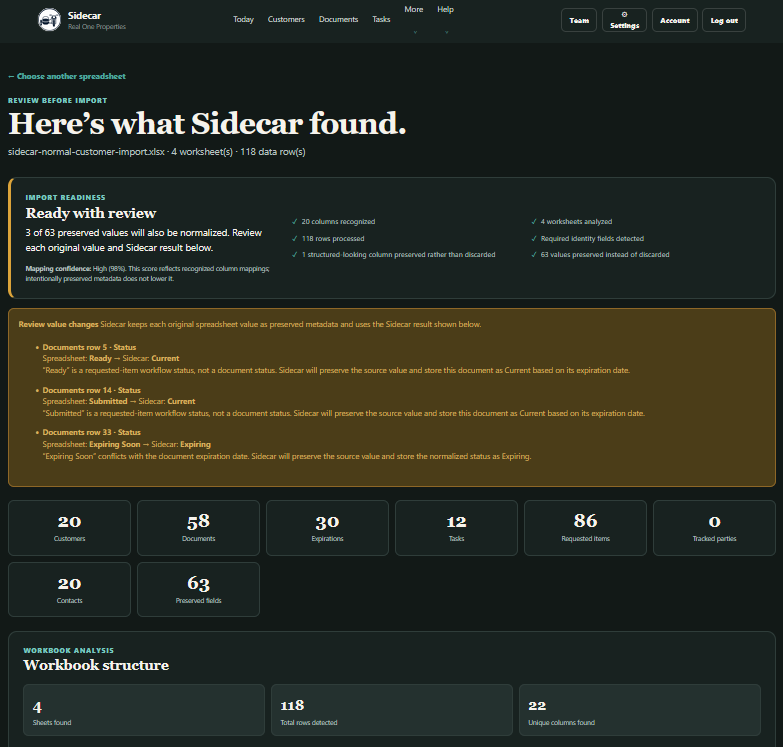 Scroll down through the page to see the entire analysis
You should still review the import preview carefully. Spreadsheets develop local dialects over time, and “Status” can mean anything from “received” to “someone colored this cell green in 2022.”
If you approve, click Approve import at the bottom.
Start manually
Manual setup is often better when your existing spreadsheet is small, inconsistent, or no longer reflects the way the work is actually handled.
Start by opening Customers from the main navigation, then select Add customer. Enter the customer’s name and any useful notes, then save the record. You can add platforms and contacts from the customer page after it has been created.
Add a few customers first, then build one customer package at a time. This makes it easier to learn the relationship between requested items, documents, contacts, tasks, and waiting work.
You can also combine both approaches. Import the stable records, then add or correct the workflow details directly in Sidecar.
Set your basic workspace preferences
Open Settings before building the full workspace. You do not need to review every option, but two settings affect what appears on Today and in document attention views.
Expiration attention window
The expiration attention window controls how many days before expiration a document begins appearing as expiring.
Choose a window that gives your team enough time to request and process replacements. A 45-day window is a practical starting point for many teams, but your actual lead time may be shorter or longer.
This setting controls operational visibility. It does not determine whether a document is valid or acceptable to a customer.
Today focus limit
The Today focus limit controls how many of the highest-priority customers appear in the main daily focus section.
Start with a number your team can realistically review. The goal is to create a useful working list, not reward the dashboard for displaying every unresolved item at once. All Work remains available when you need the full backlog.
You can also choose a light, dark, or system-default theme. This has no effect on workflow behavior, but staring at software is still staring at software, so use the version your eyes object to least.