
Getting Started: Full Guide
View the complete Sidecar Getting Started guide on one page.
Sidecar works best when it becomes the place your team checks before rebuilding the day from email, spreadsheets, shared folders, and customer portals.
You do not need to configure every feature before using it. A useful first setup can be simple: add a few customers, record what each one has asked for, connect the documents you already have, and identify the work that is missing or waiting on someone else.
This guide walks through that first setup and the normal daily workflow that follows.
Before you begin
It helps to have a few things nearby before you start:
- Your current customer or client list
- The spreadsheet you use to track documents, expirations, requests, or follow-ups
- A few representative customer requirements
- The names and email addresses of customer, broker, platform, employee, or internal contacts
- The documents you want to track first
Do not wait until every spreadsheet has been cleaned up. Sidecar is meant to help organize the real workflow, not require a ceremonial purification of Excel before you are allowed through the door.
A good first goal is to set up three to five active customers. Choose a mix: one that is mostly in good shape, one with missing work, and one with a request or follow-up already in progress. That is enough to make Today, Waiting On, and Customer Detail useful without turning setup into a week-long data-entry project.
Understand what belongs in Sidecar
Sidecar tracks the operational work around customer-required documents. The main record types are related, but they serve different purposes. This section covers the practical setup decisions; Core Concepts explains how those records behave together once work is underway.
Customers
A customer is the organization asking your company for documents, information, or administrative work. A general contractor, utility, facility owner, municipality, or other client can each be a customer in Sidecar.
The customer page becomes the central place for that relationship. It brings together requested items, documents, tasks, contacts, platform assignments, waiting work, and activity history.
Requested items
A requested item is something the customer expects your team to provide or complete.
Examples include:
- Provide a current certificate of insurance
- Submit a signed W-9
- Upload an employee training roster
- Complete a safety questionnaire
- Revise an endorsement and resubmit it through the customer portal
The requested item represents the obligation. It can exist before the supporting document is available.
Documents
A document is the file or tracked record that may satisfy a requested item.
For example, “Provide a current COI” is the requested item. The actual Certificate of Insurance record is the document. Keeping those concepts separate helps Sidecar show the difference between what the customer asked for and what your team currently has on file.
Documents can include a category, status, effective date, expiration date, customer or platform relationship, and the person or organization the document belongs to.
Not every document expires. W-9s and some other records can be tracked without inventing a fake expiration date.
Tasks
Tasks are internal work your team needs to perform.
A task might be “Confirm payroll export is ready,” “Upload revised COI to Avetta,” or “Call the field supervisor about missing training dates.” Tasks can have an owner, priority, status, due date, notes, and related customer or document.
A task is different from a requested item. Requested items describe what the customer needs. Tasks describe what your own team needs to do.
Waiting work
Waiting means the next step currently belongs to someone else.
Sidecar can track work waiting on a customer, broker, platform, employee, internal team, or another party. A waiting item can include a note, the date waiting began, and the date your team plans to follow up.
Waiting is not the same as complete. It simply answers a practical question: who has the ball right now?
Choose how to start
There are two reasonable ways to begin.
Start with a spreadsheet import
Import is usually the fastest path when you already have a customer or document tracker. Click on More > Import to pull up the spreadsheet import tool.
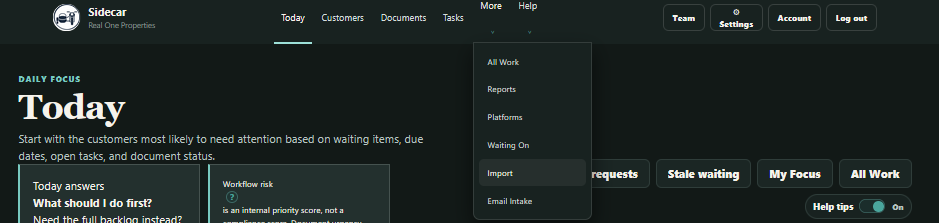 Open More > Import to reach the spreadsheet import area.
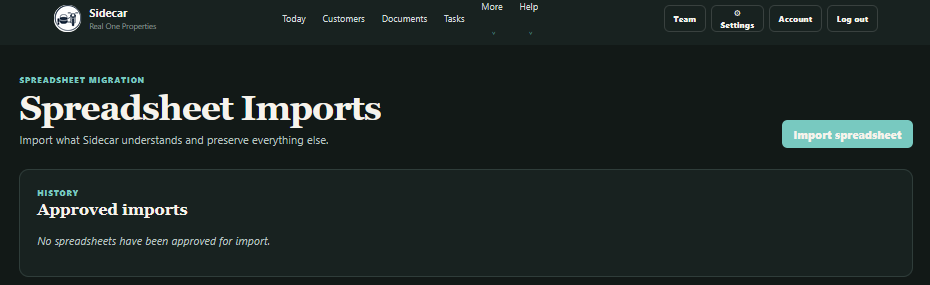 Select Import spreadsheet to choose a workbook and begin the review process.
Sidecar analyzes the workbook, identifies the information it understands, and shows a preview before anything is approved. Fields that do not map to a native Sidecar field can be preserved as imported metadata instead of being thrown away.
Import is especially useful when your spreadsheet already contains customer names, document titles, categories, statuses, expiration dates, tasks, or follow-up notes.
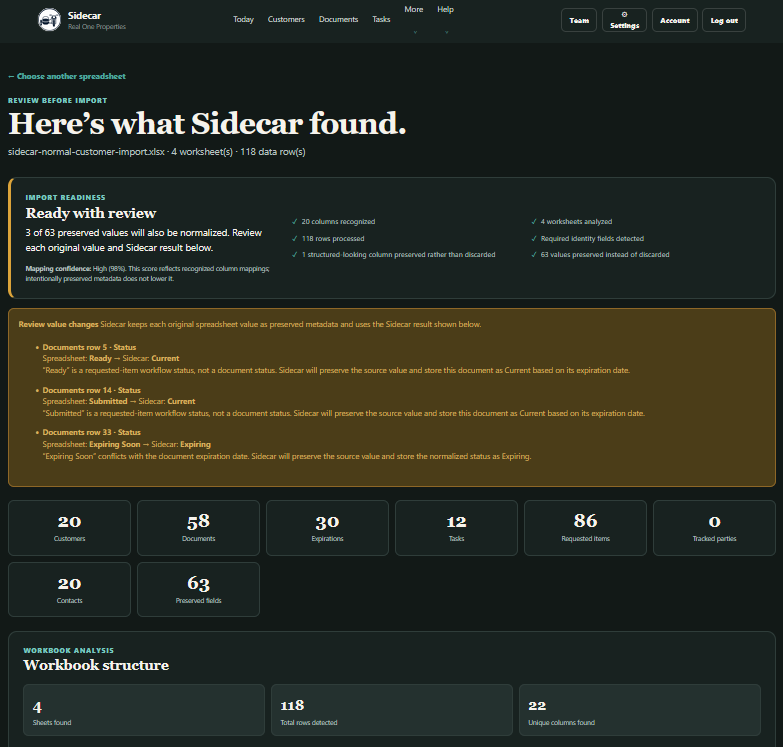 Scroll down through the page to see the entire analysis
You should still review the import preview carefully. Spreadsheets develop local dialects over time, and “Status” can mean anything from “received” to “someone colored this cell green in 2022.”
If you approve, click Approve import at the bottom.
Start manually
Manual setup is often better when your existing spreadsheet is small, inconsistent, or no longer reflects the way the work is actually handled.
Start by opening Customers from the main navigation, then select Add customer. Enter the customer’s name and any useful notes, then save the record. You can add platforms and contacts from the customer page after it has been created.
Add a few customers first, then build one customer package at a time. This makes it easier to learn the relationship between requested items, documents, contacts, tasks, and waiting work.
You can also combine both approaches. Import the stable records, then add or correct the workflow details directly in Sidecar.
Set your basic workspace preferences
Open Settings before building the full workspace. You do not need to review every option, but two settings affect what appears on Today and in document attention views.
Expiration attention window
The expiration attention window controls how many days before expiration a document begins appearing as expiring.
Choose a window that gives your team enough time to request and process replacements. A 45-day window is a practical starting point for many teams, but your actual lead time may be shorter or longer.
This setting controls operational visibility. It does not determine whether a document is valid or acceptable to a customer.
Today focus limit
The Today focus limit controls how many of the highest-priority customers appear in the main daily focus section.
Start with a number your team can realistically review. The goal is to create a useful working list, not reward the dashboard for displaying every unresolved item at once. All Work remains available when you need the full backlog.
You can also choose a light, dark, or system-default theme. This has no effect on workflow behavior, but staring at software is still staring at software, so use the version your eyes object to least.
Add your first customers
Open Customers and add the organizations whose requirements you need to track.
Use the customer name your team will recognize in normal work. Add notes that help explain the relationship, such as the customer’s usual portal, renewal cycle, or administrative contact. Avoid turning the customer note into a second filing cabinet. Record the context someone would actually need when returning to the account later.
If the customer uses a required platform such as Avetta, ISNetworld, Veriforce, or a customer-specific portal, assign that platform to the customer. Sidecar tracks the work around those platforms; it does not replace them.
For the first setup, add customers before adding a large number of standalone documents. Customer Detail is where the operational story comes together, so beginning there gives the rest of the records a clear home.
Add the contacts used for requests and follow-ups
Contacts allow Sidecar to prefill request recipients and preserve the reason a person belongs to the workflow.
A contact can be identified as a:
- Customer contact
- Broker
- Platform contact
- Employee
- Internal team member
- Other operational contact
Add the contacts you actually expect to email. Mark the primary contact for each type when there is a clear default.
For example, a customer may have one primary administrative contact and a separate broker contact. An employee training request may need to go to a field supervisor instead of the customer. The contact type helps Sidecar choose the most appropriate recipient when a request or follow-up is prepared.
You can manage contacts from the customer page, and workspace settings provide a broader view of configured customer contacts.
Record who a document belongs to
Some documents belong to your company. Others belong to a subcontractor, employee, crew, vendor, or another tracked party.
When adding a document or requested item, use the subject or tracked-party field when ownership matters.
Examples:
- A company W-9 may belong to the workspace or primary company.
- A COI may belong to a subcontractor.
- A First Aid/CPR card may belong to an employee.
- A training roster may belong to a field crew.
This context matters when two records have similar names. “Missing COI” is useful. “Missing COI for Apex Trenching LLC” is much more useful at 8:12 on a Monday morning.
Build the first customer package
Open a customer and add the items that customer currently expects.
Do not try to design a universal requirement library during the first setup. Record the real requested work for the customer in front of you.
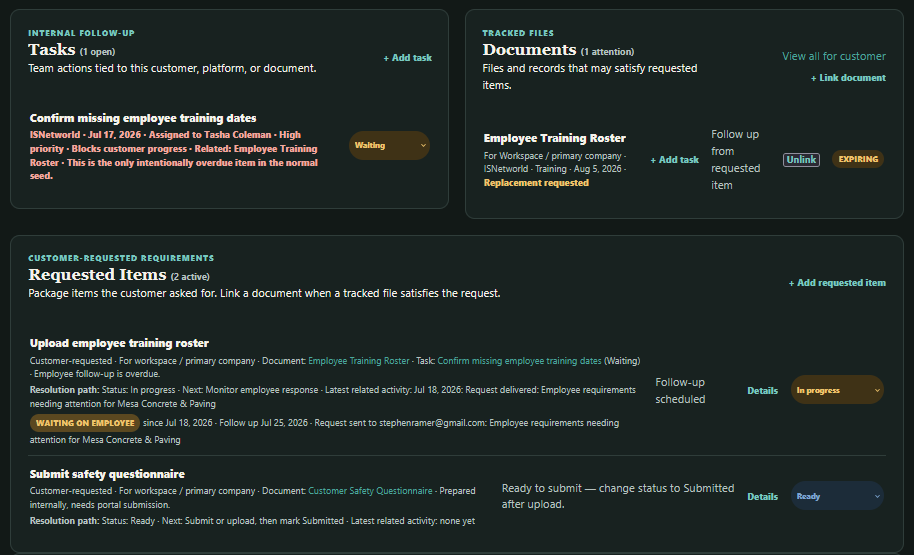 The customer page brings requested items, linked documents, and related internal tasks together in one working view. The Documents section on the customer page shows records already linked to that customer; new documents are added from the main Documents page.
Add requested items and tasks from the customer page. To create a new document, open Documents from the main navigation, add the document there, and link it to the customer or requested item as appropriate.
For each requested item, decide:
- Is it required?
- What is its current status?
- Does an existing document satisfy it?
- Does it belong to the workspace or a tracked party?
- Is your team waiting on someone?
- Is there a follow-up date?
- Is there a note that explains the current situation?
Common requested-item statuses include Missing, In progress, Ready, Submitted, Accepted, and Not applicable.
Use the status that describes the current operational state. A document being on file does not necessarily mean the customer has accepted it. Likewise, a submitted item may still be waiting on platform review.
Link documents to requested items
When an existing document satisfies a requested item, link the document to the item.
The requested item continues to describe the customer obligation. The document provides the tracked file or record associated with it. This relationship helps Customer Detail explain why an item is complete, still active, or waiting for replacement.
Add the documents already on file
For each document, record the information your team needs to manage it:
- A clear title
- Document category
- Current status
- Effective and expiration dates, when applicable
- Customer and platform relationships
- Subject or tracked party
- Notes that explain unusual conditions
Sidecar can assist with document intake by suggesting titles, categories, and dates through OCR. Suggestions should be reviewed before they are applied. OCR is there to reduce typing, not to make decisions on your behalf with the confidence of a scanner that once mistook a policy number for a ZIP code.
Start the day on Today
Once a few customers have active records, open Today.
Today is the main daily starting point. It ranks customers based on operational signals such as missing requested items, waiting work, follow-up timing, open tasks, and document status.
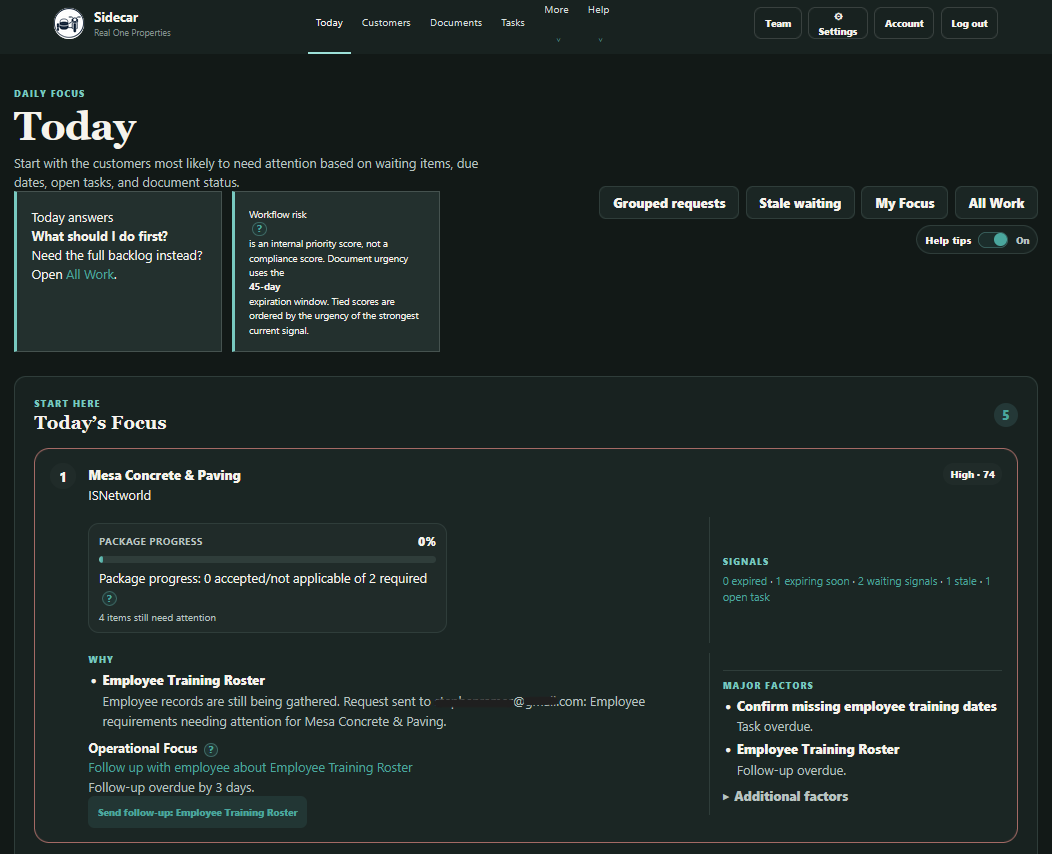
Today surfaces the customers most likely to need attention and explains the signals behind that priority.
A customer card may include:
- Attention level and workflow risk
- Package progress
- Counts for expired, expiring, waiting, stale, or open work
- A short explanation of why the customer is being prioritized
- The current Operational Focus
- Major and additional factors
Workflow risk is an internal priority signal. It is not a compliance score, customer approval score, or prediction of what a portal will decide.
Read Operational Focus first
Operational Focus identifies the most important thing to review for that customer now.
Sometimes it is a direct action, such as sending a request, following up with a broker, or completing an overdue task. Sometimes the correct result is that no immediate action is required because the work is waiting and the follow-up date is still in the future.
Open the Operational Focus link or the customer name to see the full customer context before changing records.
Use the signals as an explanation, not a checklist
The signals on Today explain why the customer is visible. They are not necessarily separate pieces of work.
A single expired document may also be linked to a requested item and a follow-up. Customer Detail shows how those records relate so your team does not treat one real-world obligation as three unrelated emergencies.
Use Customer Detail to understand the full story
Today tells you where to look. Customer Detail explains what is happening.
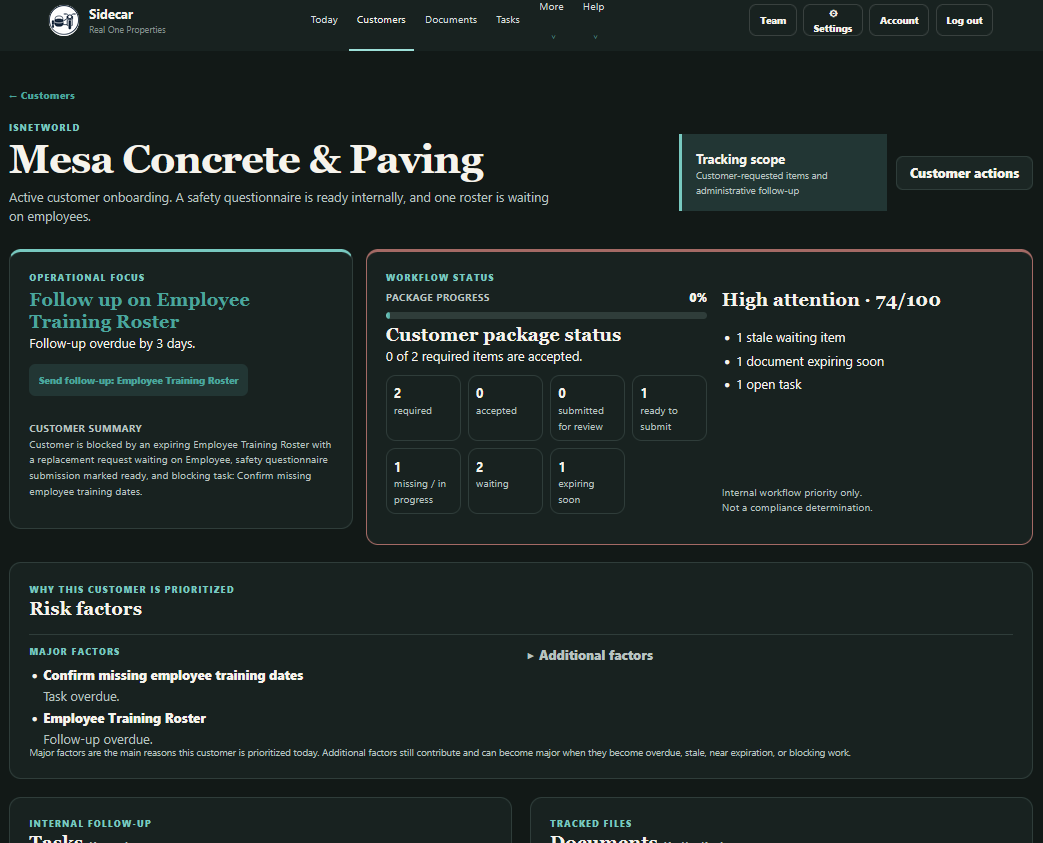
Customer Detail connects the current priority with the records and workflow state behind it.
At the top of the page, review:
- Operational Focus, which identifies the most important current action or watch state
- Customer summary, which describes the account in plain language
- Customer package status, which summarizes tracked required items
- Attention priority, which reflects active workflow pressure
- Risk factors, which explain the records contributing to that priority
Further down, the page connects tasks, documents, requested items, activity history, platforms, and contacts.
Package progress and attention are different
Package progress describes how much of the tracked required package has moved toward completion. Attention priority describes how urgently the customer needs review.
A customer can have high package progress and still need immediate attention because one document expired or a follow-up is overdue. Another customer can have a lower package percentage without being urgent because the remaining work is newly created or waiting until a future date.
Do not use package progress as a compliance determination. It reflects the statuses recorded in Sidecar, not a legal, insurance, safety, or customer approval decision.
Send a request
When a requested item or document needs information from someone else, use the available Request or Follow up action.
Before sending, review the request preview carefully:
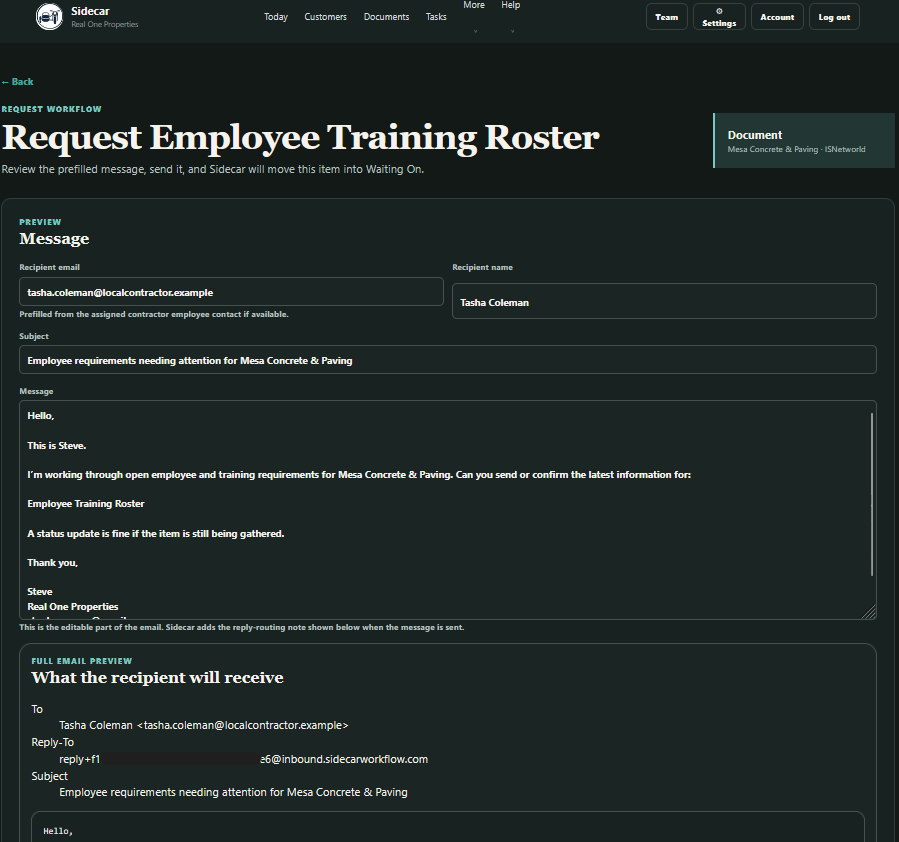
Review the recipient and message before sending.
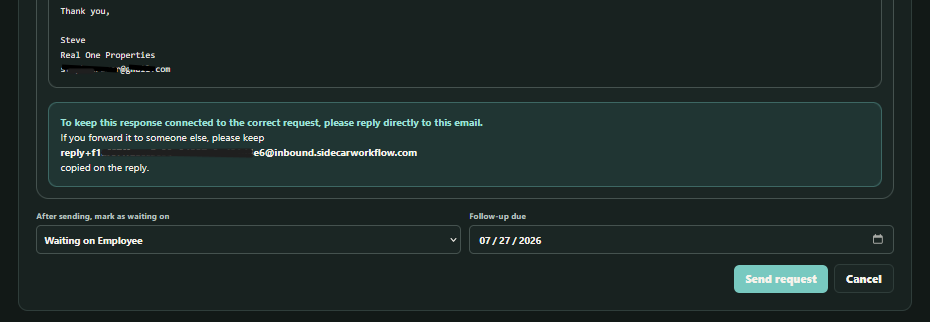
The waiting party and follow-up date determine how Sidecar tracks the request after it is sent.
- Confirm the recipient.
- Confirm the subject and message.
- Choose who the work will be waiting on.
- Set a realistic follow-up date.
- Make sure the request describes the exact item needed.
- Send only after the preview matches the real workflow.
After a successful send, Sidecar records the request and updates the associated waiting and follow-up state. The request should no longer look like an unsent initial request while your team is waiting for a response.
In the public demo, outbound messages are simulated and recorded safely. Customer workspaces use the configured email provider.
Avoid immediate duplicate requests
If an item is already waiting and its follow-up date is still in the future, do not send another initial request merely because the button is nearby and emotionally available.
The waiting state, request history, and follow-up date should tell the next user what has already happened and when the item should be revisited.
Work from Waiting On
Open More > Waiting On when you need to answer, “Who has the ball?”
The page brings together waiting documents, requested items, and tasks. Each row can show the customer, platform, waiting party, waiting-since date, follow-up date, and note explaining the delay.
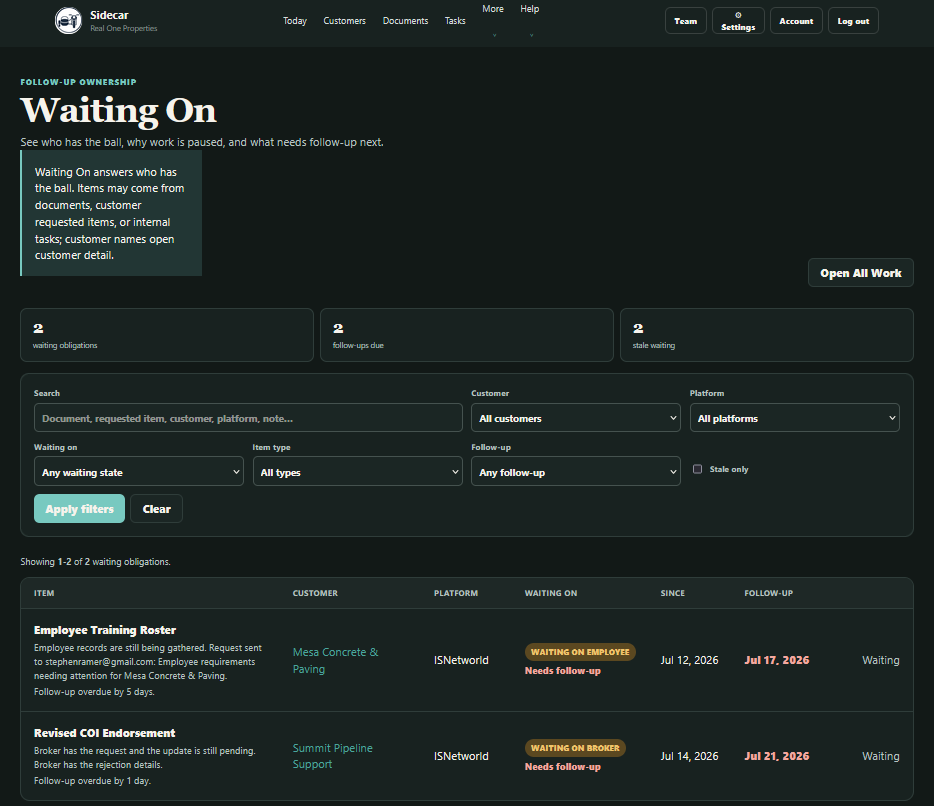 Waiting On shows who currently has the ball and when your team should review the item again.
Use the filters to narrow the list by customer, platform, waiting party, item type, or follow-up timing.
A future follow-up date means the item can usually remain where it is unless new information arrives. A due or stale follow-up means your team should review the item and decide whether to send a follow-up, update the date, or change the workflow state.
Sending a follow-up does not mean the work is complete. The item remains waiting until the underlying response, document, review, or decision arrives.
Review inbound replies before changing the workflow
Replies sent to a Sidecar request can enter Email Intake for review.
Inbound email is deliberately review-first. Sidecar may suggest a likely customer, category, requested item, task, or document relationship, but it does not automatically rewrite customer records just because a message arrived.
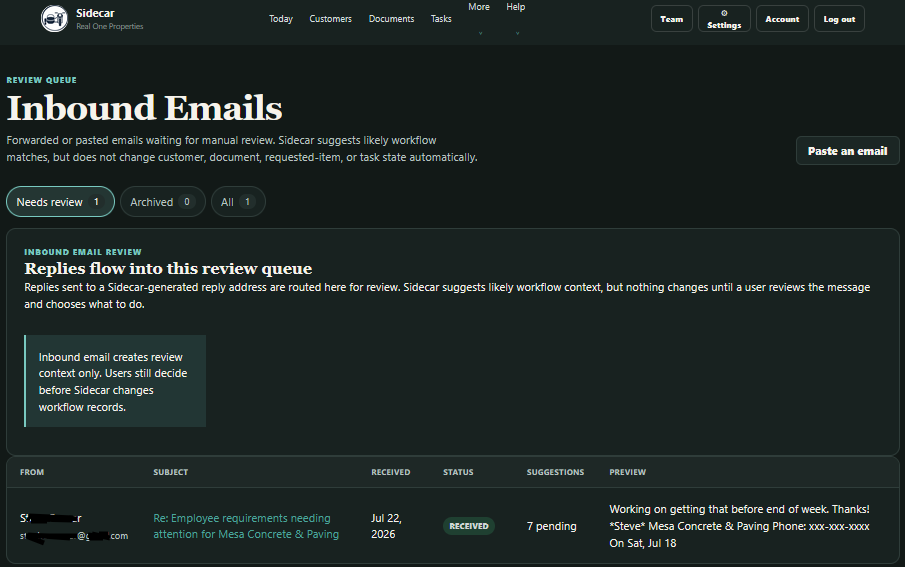 Review the message, attachments, and suggested relationships before applying any workflow change.
When reviewing an inbound email:
- Confirm the sender and subject.
- Read the new message rather than relying only on quoted history.
- Inspect attachments before opening or using them.
- Confirm the suggested customer and workflow relationship.
- Correct the suggestion when needed.
- Decide whether the reply should update a document, requested item, task, or activity record.
- Apply the workflow change only after the context is clear.
This keeps email useful without allowing an attachment named final_FINAL_revised2.pdf to become the undisputed ruler of the database.
Update the current state when work moves forward
When a response arrives or your team completes work, update the source record that represents the current workflow.
Examples:
- Change a requested item from Missing to In progress after work begins.
- Change it to Ready when the material is prepared for submission.
- Change it to Submitted after it is sent to the customer or portal.
- Change it to Accepted only when your team has recorded acceptance.
- Clear the waiting state when the next move no longer belongs to the other party.
- Complete an internal task when the internal work is actually done.
- Update or replace an expired document with the correct status and expiration date.
Activity History preserves important past events. The visible status, waiting state, and follow-up date on the current record describe what is true now.
Use All Work for the full backlog
Today is intentionally selective. Open More > All Work when you need to review every open item across the workspace.
All Work organizes the backlog into areas such as:
- Missing requested items
- Work due soon
- Documents needing attention
- Open tasks
- Waiting obligations
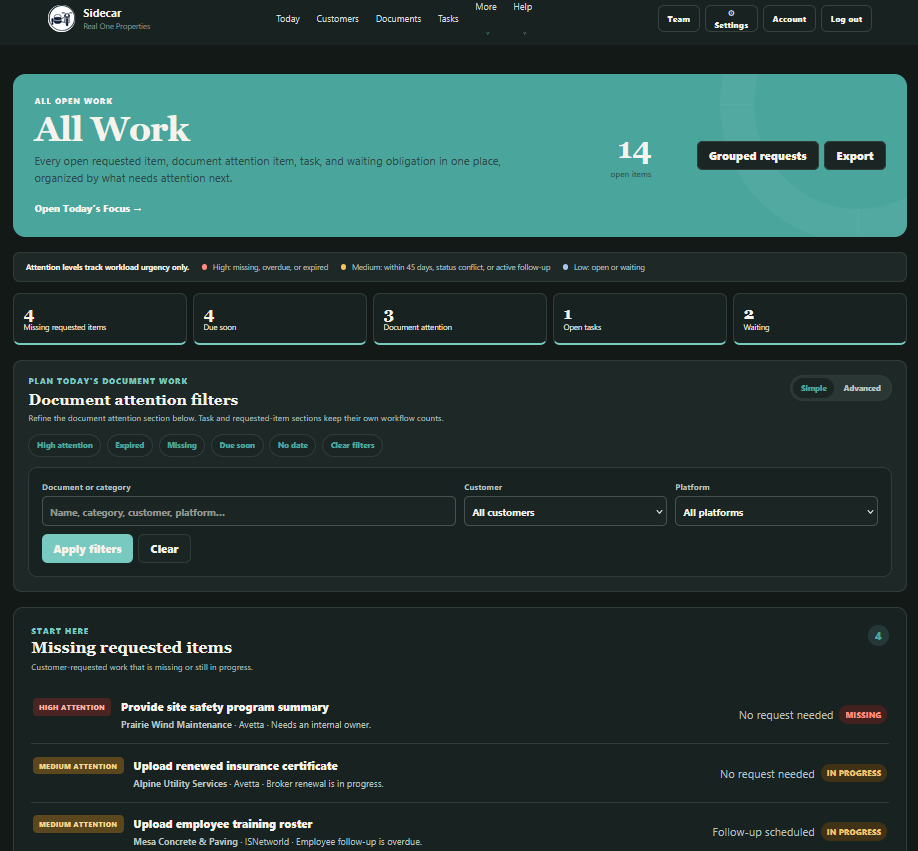 All Work organizes the complete workspace backlog by work type. Use the category counts and filters to narrow the review, then scroll through the sections below.
Use filters when reviewing a specific customer, platform, category, attention level, or date condition. All Work is also useful when reconciling counts or preparing for a team review.
The presence of an item in All Work does not always mean it needs action today. Some records are visible because they are open, waiting, or approaching a date. Today and Operational Focus help separate immediate work from the broader backlog.
Use Tasks for internal ownership
Open More > Tasks when your team needs a dedicated view of internal work.
Assign tasks when ownership is clear. Use a due date that reflects when the work should be reviewed, not an imaginary deadline added solely to make the row look complete.
A useful task title begins with an action:
- Confirm revised insurance limits with broker
- Upload training roster to ISNetworld
- Review customer portal rejection
- Call field supervisor about missing dates
Add enough context in the notes that another user can continue the work without reconstructing the entire situation from Outlook.
When a task is waiting on another party, record the waiting state and follow-up date. When it is complete, mark it complete so it no longer competes with active work on Today and All Work.
Run a weekly review from Reports
The Reports page supports daily or weekly operational review. It provides focused views rather than an executive dashboard full of decorative graphs and feelings.
Review areas can include:
- Documents expiring in 30, 60, or 90 days
- Overdue follow-ups
- Waiting work grouped by party
- Missing required items
- Blocked customers
- Owner workload
- Customer package status
A practical weekly review might look like this:
- Review documents expiring within the next 90 days.
- Check overdue follow-ups and decide what needs contact today.
- Review waiting work by party for recurring bottlenecks.
- Look at missing required items that have not yet been requested.
- Review workload by owner.
- Export the report when it needs to be discussed or retained outside Sidecar.
Reports summarize the records in Sidecar. They do not determine compliance or approval.
Export your workspace
Sidecar provides workspace exports so your organization can keep a usable copy of its operational data.
From Settings, export the workspace as an Excel workbook or a ZIP containing CSV files. Exports can include customers, platforms, documents, tasks, work views, import history, and preserved metadata.
Customer Detail and other operational views may also provide narrower exports when you need a specific customer package or review list.
Export is not a substitute for Sidecar’s operational backups, but it ensures your team is not trapped inside the application when it needs its own data.
A practical daily routine
A normal day in Sidecar does not require visiting every page.
Start on Today and review the highest-priority customer. Open Customer Detail, confirm the Operational Focus, and perform or assign the next real action. Continue through the focus list until the urgent work is handled or intentionally waiting.
Then check Waiting On for follow-ups due today. Review Email Intake for replies that need classification. Use All Work only when you need the full backlog or a filtered review.
Before finishing, make sure completed work is marked complete, new waiting states have useful notes, and follow-up dates reflect when someone should actually return to the item.
That is enough. Sidecar should reduce the morning treasure hunt, not replace it with a nine-tab software ritual.
First-day checklist
By the end of the first working session, aim to have:
- Workspace preferences reviewed
- Three to five customers added or imported
- Platforms assigned where relevant
- Primary request contacts recorded
- A representative set of requested items added
- Existing documents linked where appropriate
- Missing and in-progress work identified
- At least one internal task assigned
- Waiting notes and follow-up dates recorded for active requests
- Today reviewed for a believable priority order
- One workspace export downloaded and opened successfully
You do not need every historical record before the workspace becomes useful. Add enough current information to make the next action clear, then improve the record as normal work continues.
Common setup mistakes
Treating every record as urgent
Use realistic statuses, due dates, and follow-up dates. If everything is urgent, Today becomes an anxiety generator instead of a work queue.
Using tasks for customer obligations
Use requested items for work the customer expects. Use tasks for internal actions. Keeping them separate makes ownership and package status easier to understand.
Marking waiting work complete
Waiting means another party has the next step. Keep the item active until the underlying work is resolved.
Treating a submitted item as accepted
Submission and acceptance are different events. Record the state your team can support.
Creating duplicate records instead of linking them
Before adding another document or requested item, check whether the existing records can be linked or updated. One obligation scattered across several nearly identical rows is how spreadsheets reproduce in captivity.
Relying on Activity History as the current status
Activity History explains what happened. The source record’s current status, waiting state, and follow-up date describe what is true now.
What Sidecar does not decide
Sidecar helps organize administrative workflow. It does not determine whether a company, vendor, subcontractor, employee, document, insurance policy, or customer package is compliant, approved, qualified, or legally sufficient.
Your team remains responsible for reviewing source documents, customer instructions, insurance requirements, portal decisions, and any legal or regulatory obligations that apply to the work.
Sidecar’s job is smaller and more practical: show what is missing, who has the ball, what needs attention, and what happened along the way.
Make Sidecar the operating record
Sidecar becomes more useful when the team treats it as the current record of administrative work rather than another place to copy information occasionally.
Update statuses when work moves forward. Record who has the ball, set realistic follow-up dates, and close tasks when they are finished. When everyone keeps that record current, Sidecar can become the place the team checks to understand what is missing, what is waiting, and what needs attention next.
Customer portals, email, and source documents will still exist. What Sidecar can replace is the scattered status hunt across inboxes, spreadsheets, notes, and memory.
Keeping that operational record current reduces the chance that a forgotten request, expired record, or unresolved follow-up delays work, strains a customer relationship, or contributes to lost business.