
Keep work current
Update source records as work changes, review the full backlog, and keep internal tasks properly owned.
Update the current state when work moves forward
When a response arrives or your team completes work, update the source record that represents the current workflow.
Examples:
- Change a requested item from Missing to In progress after work begins.
- Change it to Ready when the material is prepared for submission.
- Change it to Submitted after it is sent to the customer or portal.
- Change it to Accepted only when your team has recorded acceptance.
- Clear the waiting state when the next move no longer belongs to the other party.
- Complete an internal task when the internal work is actually done.
- Update or replace an expired document with the correct status and expiration date.
Activity History preserves important past events. The visible status, waiting state, and follow-up date on the current record describe what is true now.
Use All Work for the full backlog
Today is intentionally selective. Open More > All Work when you need to review every open item across the workspace.
All Work organizes the backlog into areas such as:
- Missing requested items
- Work due soon
- Documents needing attention
- Open tasks
- Waiting obligations
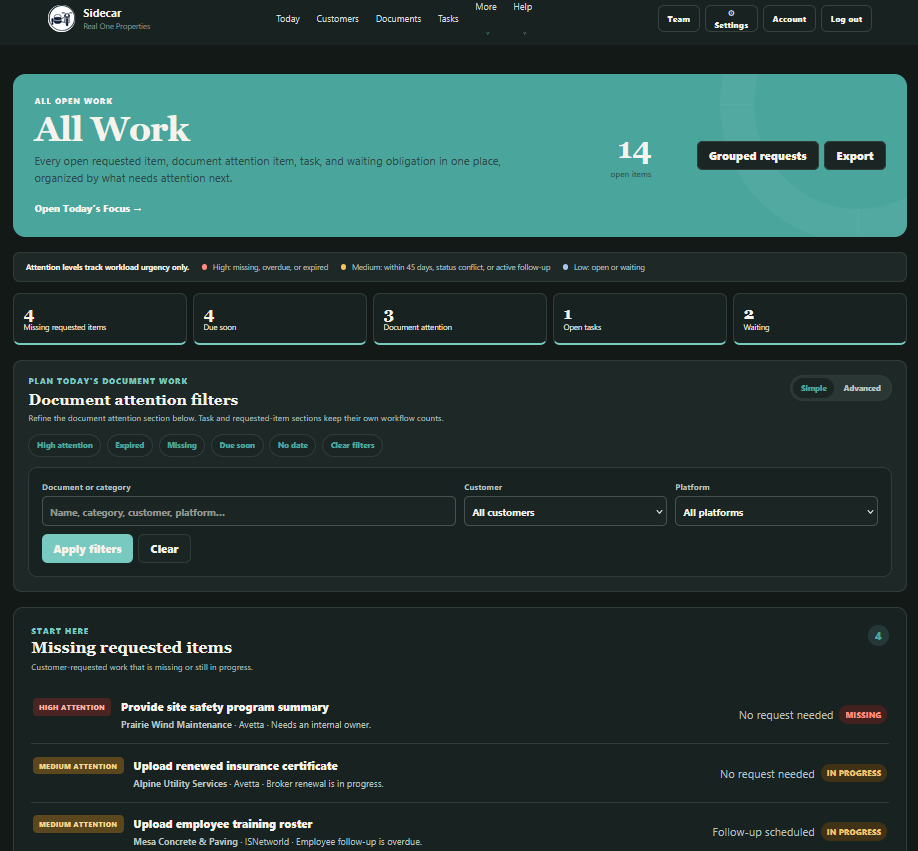 All Work organizes the complete workspace backlog by work type. Use the category counts and filters to narrow the review, then scroll through the sections below.
Use filters when reviewing a specific customer, platform, category, attention level, or date condition. All Work is also useful when reconciling counts or preparing for a team review.
The presence of an item in All Work does not always mean it needs action today. Some records are visible because they are open, waiting, or approaching a date. Today and Operational Focus help separate immediate work from the broader backlog.
Use Tasks for internal ownership
Open More > Tasks when your team needs a dedicated view of internal work.
Assign tasks when ownership is clear. Use a due date that reflects when the work should be reviewed, not an imaginary deadline added solely to make the row look complete.
A useful task title begins with an action:
- Confirm revised insurance limits with broker
- Upload training roster to ISNetworld
- Review customer portal rejection
- Call field supervisor about missing dates
Add enough context in the notes that another user can continue the work without reconstructing the entire situation from Outlook.
When a task is waiting on another party, record the waiting state and follow-up date. When it is complete, mark it complete so it no longer competes with active work on Today and All Work.